Canvas LTI setup for Humans But Guided
Step-by-step guide for a Canvas administrator to register Humans But Guided as an LTI 1.3 tool. Screenshots were captured on the HBG Canvas demo instance.
Use this guide when configuring a partner Canvas instance manually in the UI. For the automated API path, see Partner provisioning.
HBG endpoints
| Field | Value |
|---|---|
| OIDC Initiation URL | https://api.humansbutguided.com/api/lti/oidc-login |
| Redirect URI / Target Link URI | https://api.humansbutguided.com/api/lti/launch |
| JWK Set URL | https://api.humansbutguided.com/api/lti/jwks |
| Frontend (post-launch) | https://humansbutguided.com |
Part 1 — Open Developer Keys
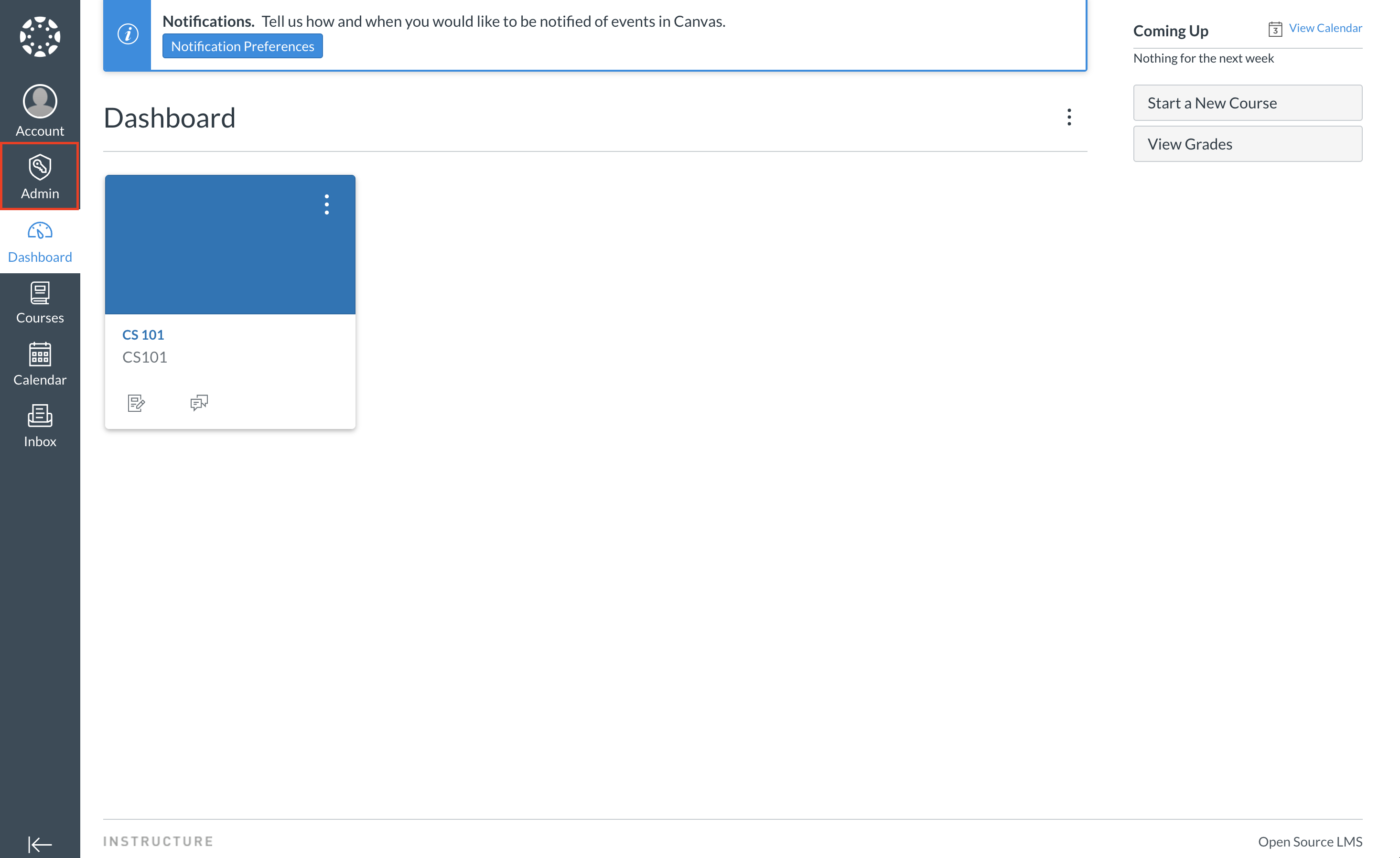
1. Log in and open Admin
Log in to Canvas with an account that has Site Admin access. From the Dashboard, click Admin in the left global navigation.
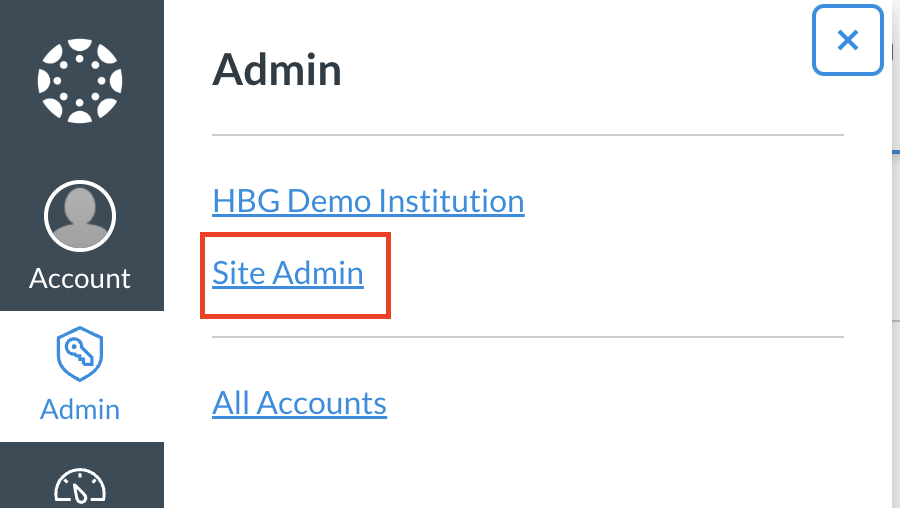
2. Choose Site Admin
In the Admin flyout, select Site Admin (not just a sub-account).
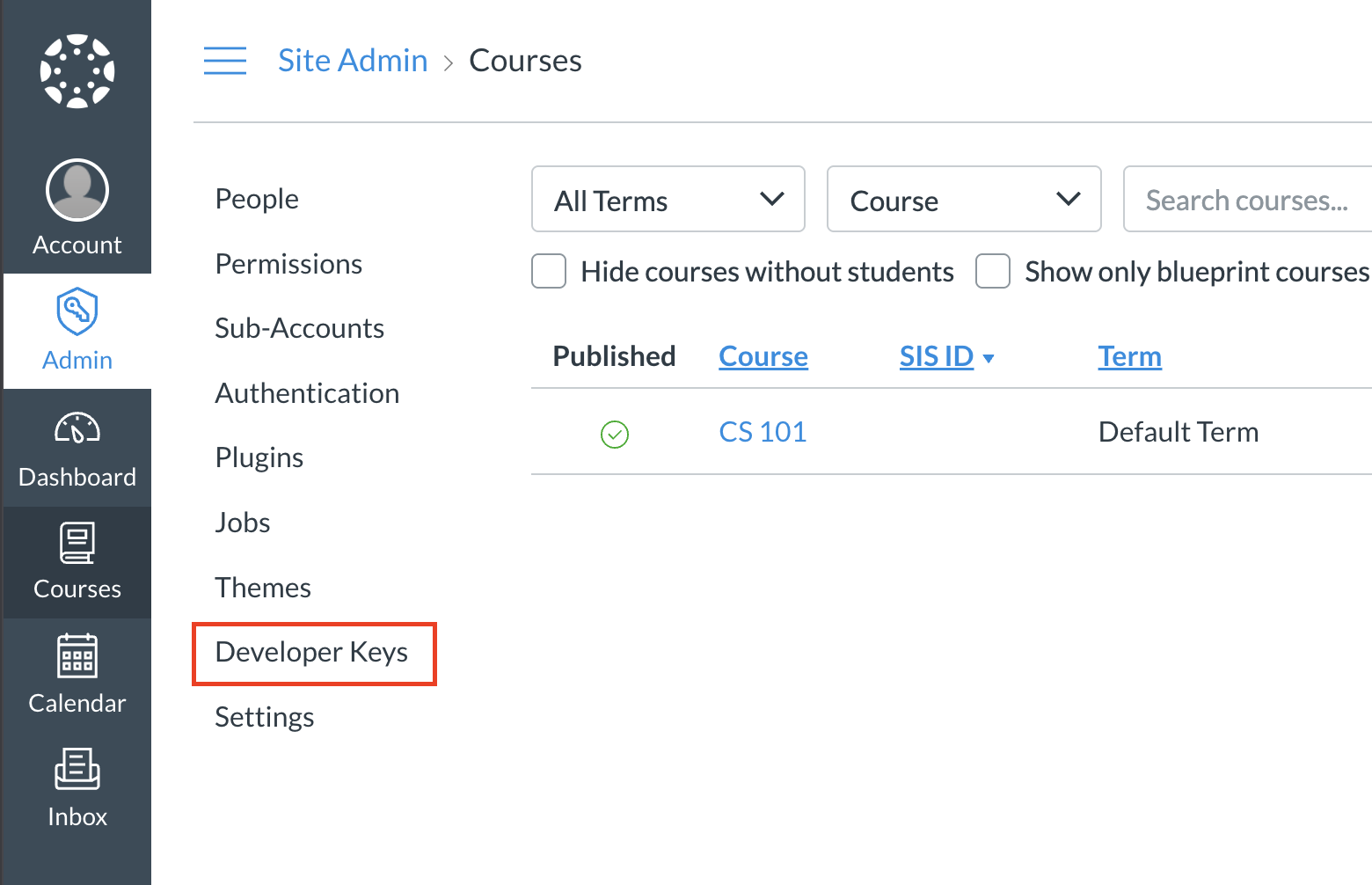
3. Go to Developer Keys
In the Site Admin sidebar, click Developer Keys.
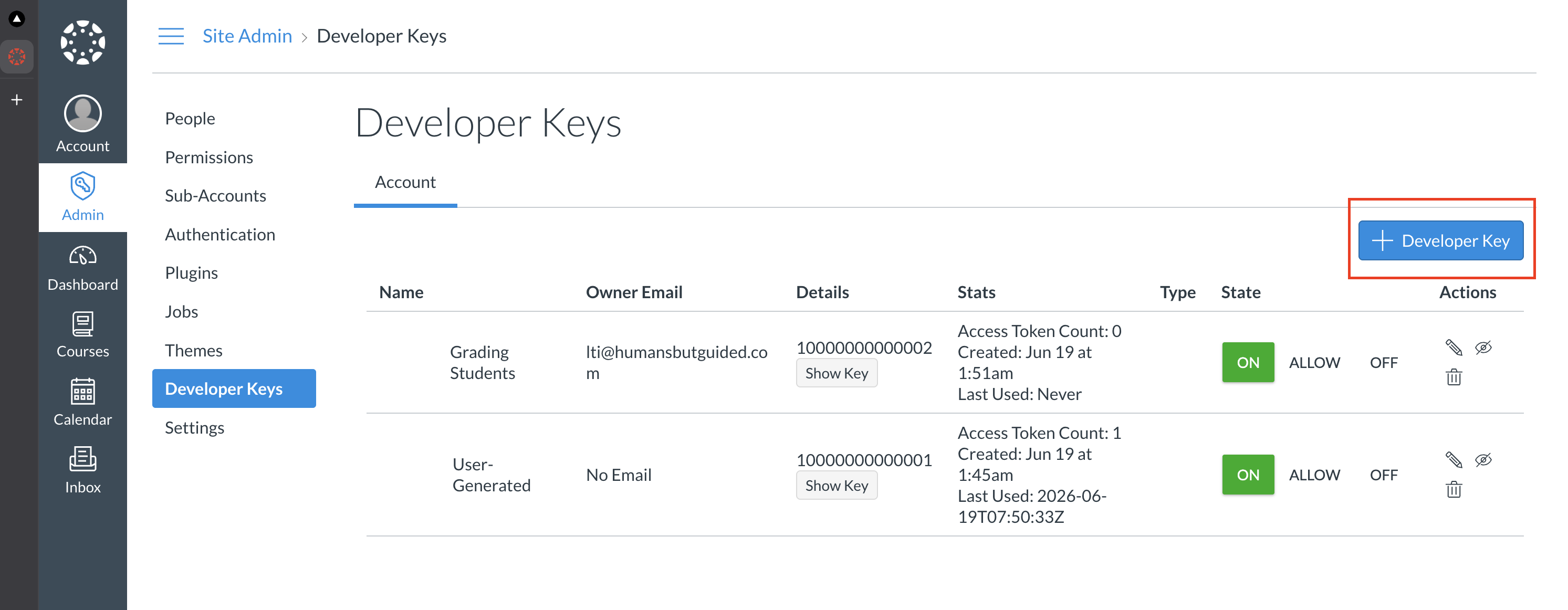
4. Start a new key
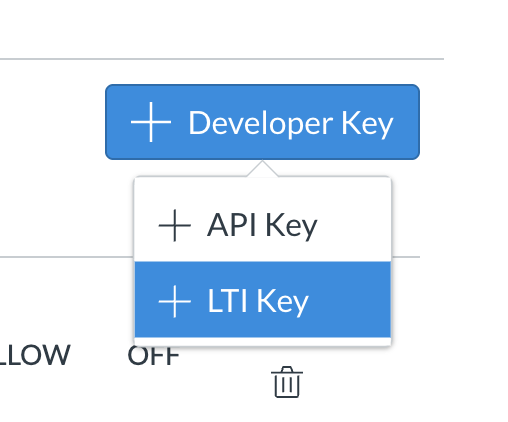
On the Developer Keys page, click + Developer Key.
5. Choose LTI Key
From the dropdown, select + LTI Key (not API Key).
Part 2 — Fill the LTI key form
The Key Settings screen has two panels: general key fields on the left and Configure on the right.
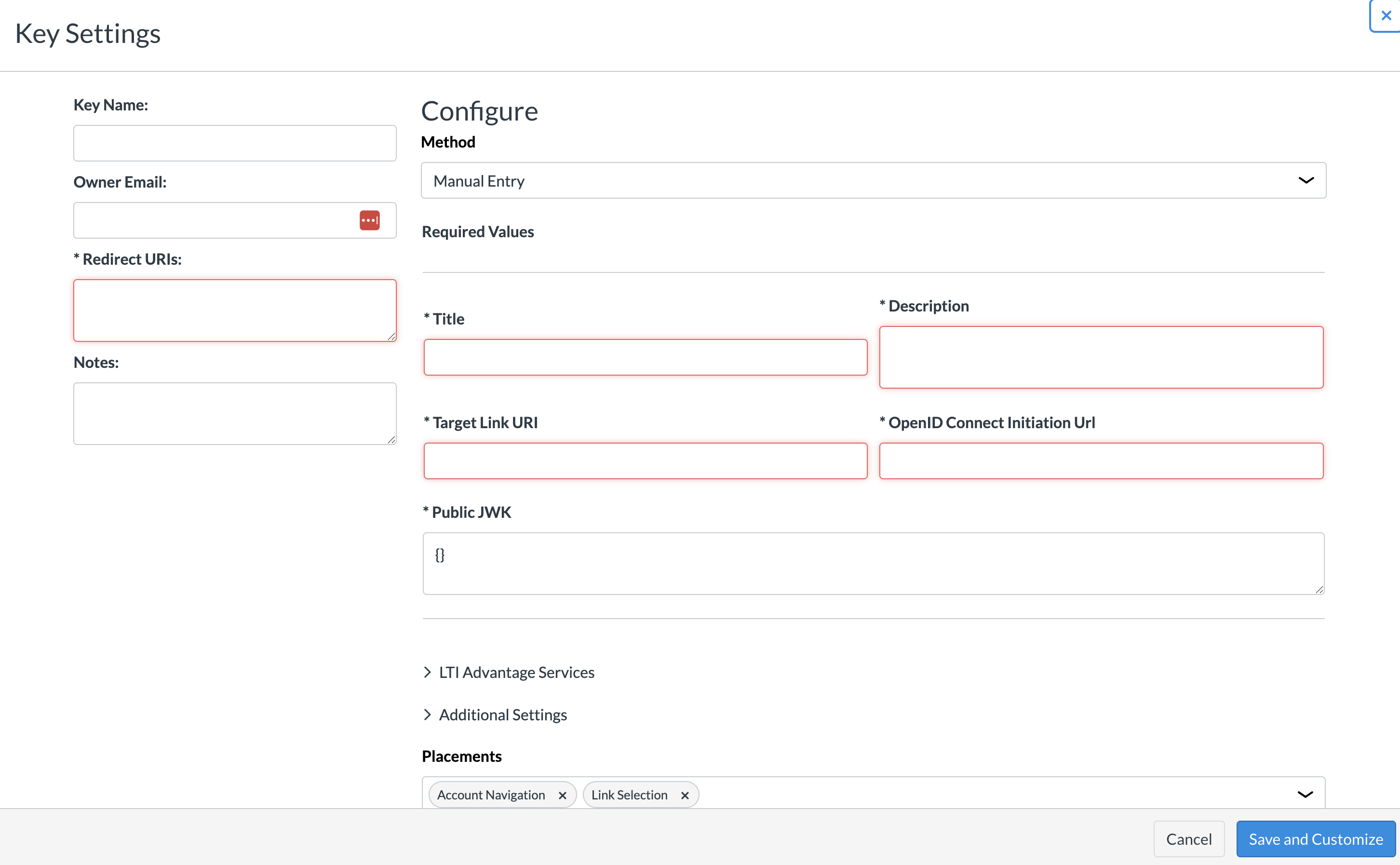
Left panel — Key Settings
| Field | Value |
|---|---|
| Key Name | Grading Students |
| Owner Email | lti@humansbutguided.com |
| Redirect URIs | https://api.humansbutguided.com/api/lti/launch |
| Notes | optional |
Right panel — Configure
Leave Method as Manual Entry.
| Field | Value |
|---|---|
| Title | Grading Students |
| Description | AI-assisted homework grading |
| Target Link URI | https://api.humansbutguided.com/api/lti/launch |
| OpenID Connect Initiation Url | https://api.humansbutguided.com/api/lti/oidc-login |
| Public JWK | See below |
Public JWK — if the form offers Public JWK URL, use:
https://api.humansbutguided.com/api/lti/jwksIf the form only accepts a pasted JWK object, fetch the key and paste it as a single line (Canvas requires "alg": "RS256"):
curl -s https://api.humansbutguided.com/api/lti/jwks | jq -c '.keys[0]'LTI Advantage Services
Expand LTI Advantage Services and enable all four gradebook-related scopes:
- Can create and view assignment data in the gradebook associated with the tool
- Can view assignment data in the gradebook associated with the tool
- Can view submission data for assignments associated with the tool
- Can create and update submission results for assignments associated with the tool
These scopes are required for Assignment and Grade Services (grade passback).
Placements
Remove the default placements (Account Navigation and Link Selection).
Add Assignment Selection and Homework Submission (both are required — without Homework Submission, the assignment page shows No Content instead of embedding HBG in the iframe).
For each placement, set:
| Field | Value |
|---|---|
| Target Link URI | https://api.humansbutguided.com/api/lti/launch |
| Message type | LtiResourceLinkRequest |
| Text | Grading Students |
Save and enable
- Click Save and Customize (or Save).
- Back on the Developer Keys list, toggle the key from OFF to ON.
- Note the numeric client_id shown on the key row — HBG needs this value.
OIDC initiation URL on the Developer Key: Canvas builds the assignment launch form from
DeveloperKey.oidc_initiation_url, not only from the tool configuration JSON. If this field is empty, Canvas POSTs login fields directly to/api/lti/launchand HBG returnsMissing state param. After saving the key, confirm the OpenID Connect Initiation URL appears on the Developer Key record (UI or Rails:DeveloperKey.find(...).oidc_initiation_url).
Part 3 — Install the app by Client ID
Creating a Developer Key alone does not install the tool in courses. Canvas must register a ContextExternalTool from the key. Skipping this step causes "Couldn't find valid settings for this link" when opening an assignment, even if the launch URL looks correct.
UI steps
- Admin → Settings → Apps tab → View App Configurations.
- Click + App.
- Choose Configuration Type: By Client ID.
- Paste the client_id from Part 2 → Submit.
- Confirm the app appears as Grading Students.
Repeat at the course level if needed: open a course → Settings → Apps → View App Configurations → + App → By Client ID → same client_id.
API alternative
Install on the account and course:
CANVAS_URL="https://canvas.partner.edu"
CANVAS_TOKEN="<canvas_admin_api_token>"
CLIENT_ID="<client_id_from_part_2>"
ACCOUNT_ID=1
COURSE_ID=<your_course_id>

curl -sS -X POST "$CANVAS_URL/api/v1/accounts/$ACCOUNT_ID/external_tools" \
  -H "Authorization: Bearer $CANVAS_TOKEN" \
  -H "Content-Type: application/json" \
  -d "{\"client_id\":\"$CLIENT_ID\"}"

curl -sS -X POST "$CANVAS_URL/api/v1/courses/$COURSE_ID/external_tools" \
  -H "Authorization: Bearer $CANVAS_TOKEN" \
  -H "Content-Type: application/json" \
  -d "{\"client_id\":\"$CLIENT_ID\"}"
Part 4 — Register the platform on HBG
After Canvas creates the key, send HBG the following:
| Field | Example |
|---|---|
| Canvas base URL | https://canvas.partner.edu |
client_id | the numeric ID from Part 2 |
deployment_id | from the installed tool (see below) |
HBG stores these in the lti_platforms table. The deployment_id must match exactly what Canvas sends in the launch token — placeholder values like 1:grading will cause validation failures.
Finding deployment_id:
- UI: Course or account Settings → Apps → View App Configurations → Grading Students
- Rails console:
ContextExternalTool.find_by(name: "Grading Students").deployment_id
# => e.g. "2:197df2e04ddcfcc6ddf0dd3a90cc00d28b9198c0"
HBG seeds the row with backend/scripts/seed_lti_platform.py using --canvas-url, --client-id, and --deployment-id.
Part 5 — Attach the tool to an assignment
The Developer Key and app install alone are not enough — each assignment must select the installed tool. Pasting only the launch URL manually (without choosing the tool via Find) leaves content_id empty and triggers "Couldn't find valid settings for this link".
UI steps
- Open the course.
- Go to Assignments → open or create an assignment → Edit.
- Set Submission Type to External Tool.
- Click Find, choose Grading Students from the list, and confirm the URL is
https://api.humansbutguided.com/api/lti/launch. - Leave Load This Tool In A New Tab unchecked unless you prefer a separate tab.
- Click Save (the assignment should remain Published).
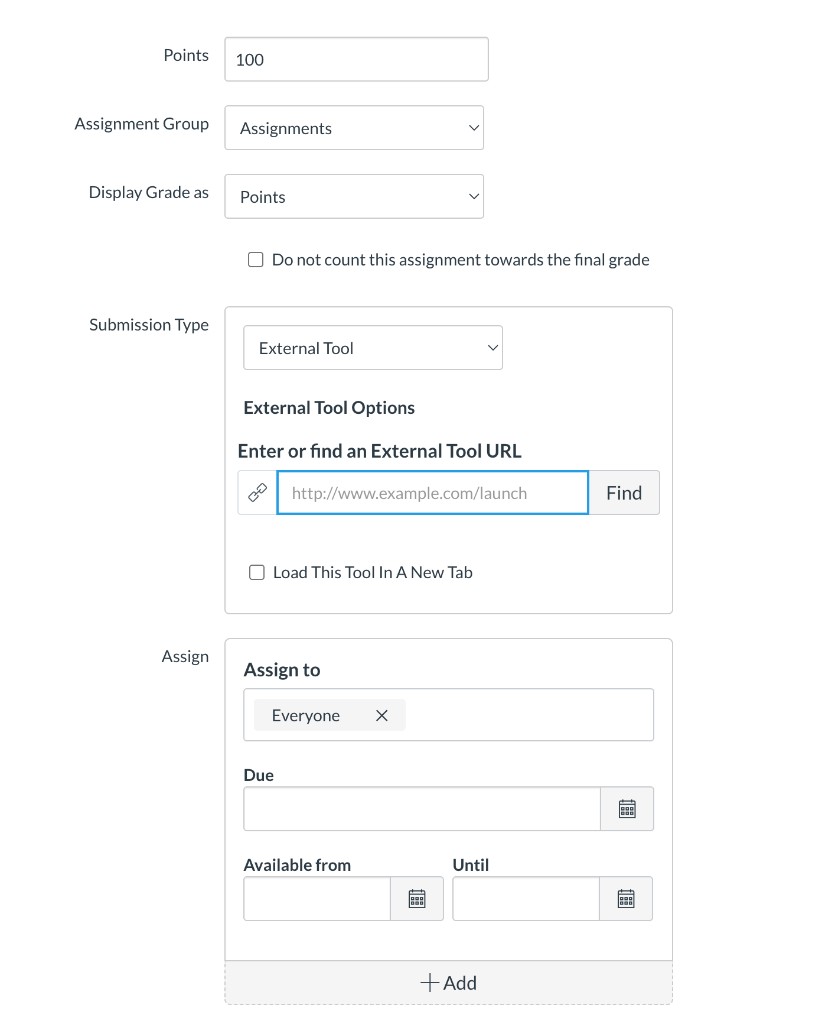
After saving, the submission type should show an external tool linked to Grading Students.
Important: Use Find → Grading Students. Do not type the launch URL manually unless you also have the tool installed via Part 3.
Verification
# HBG tool JWKS (for Canvas developer key registration)
curl -s https://api.humansbutguided.com/api/lti/jwks | jq '.keys[0] | {kty, alg, use, kid}'

# Canvas platform JWKS (for HBG to verify id_token — self-hosted Canvas only)
curl -s "https://<canvas-host>/api/lti/security/jwks" | jq '[.keys[] | .kid]'
Then open an External Tool assignment as a student. A successful launch embeds HBG inside the assignment iframe — see Outcome after integration on the LTI overview for screenshots of the expected workspace.
Backend logs on HBG should include:
LTI launch complete | launch_id=<uuid>
GET /api/lti/launches/<uuid>/embed-context 200
If the iframe is blank or shows an error, see LTI troubleshooting.
Related docs
- Partner provisioning — automated API provisioning and partner handoff
- Token requirements — JWT claims and scopes Canvas must include
- LTI troubleshooting — common launch failures